Most installation guides assume you already know the basics. They skip steps that feel obvious to experienced users but leave beginners confused at exactly the wrong moment — usually right when they are about to tap something important. This guide does not do that. Every step here is written assuming you are doing this for the first time, and the goal is to get you from zero to watching your first downloaded video without any guesswork involved.
Why the Process Is Different From Regular App Installs
When you install something from an official app store, the process is invisible. You tap a button, the store handles everything, and the app appears on your home screen. Installing from outside that environment puts a few extra steps in your hands, but none of them are complicated once you understand why they exist. Android’s default security settings flag external installations to protect users from accidentally installing harmful software — bypassing that for a specific trusted file is a deliberate choice you make consciously, not a system failure.
Preparing Your Device Before Anything Else
Check your storage first. A partially completed download caused by insufficient space wastes time and sometimes leaves behind incomplete files that need to be cleared manually. Having at least 500MB free is a reasonable starting point — the app itself is not large, but you want room for the installation file plus some working space.
Your Android version matters slightly. Devices running older versions of Android handle the unknown sources permission differently than newer ones, and knowing which situation applies to you prevents confusion mid-process.
Finding the Right File
This is where beginners most commonly go wrong, not because the process is hard, but because search results for popular apps are full of third-party hosting sites of wildly varying quality. Look for pages that display version numbers clearly, show a file size that matches what is commonly published, and do not redirect you through multiple pages before the download begins. A download that starts immediately from a stable-looking page is generally a better sign than one that requires several clicks through unfamiliar domains.
Once found, initiating the VidMate download is typically a single tap or click, and the file will appear in your device’s download folder within a minute or two depending on your connection speed.
Enabling the Permission Android Requires
Before tapping the downloaded file, you need to allow your device to install apps from outside the official store. On Android 8 and above, this is handled per-app — your browser or file manager will ask for permission automatically when you attempt to open the APK. On older Android versions, you find a single toggle under Security in your settings labeled Unknown Sources, and you switch it on.
Neither of these changes is permanent or irreversible. You can turn the permission back off immediately after installation if that makes you more comfortable, and everything will continue working normally.
The Installation Steps in Order
Open your file manager and navigate to the Downloads folder. The file you saved will be there, named with the app name and version number. Tap it once. Android will display a screen showing the app name, storage size, and the list of permissions the app is requesting. Read through that list — a video downloading app should be asking for storage access and internet connectivity, which are entirely reasonable.
Tap Install. The process takes between ten and thirty seconds on most devices. When it completes, you will see an option to Open the app directly or Done to return to your home screen. Either works — the app icon will appear in your app drawer either way.
First Launch and Initial Setup
Opening the app for the first time presents a fairly clean interface. You may be asked to confirm storage permissions again within the app itself, which is separate from the installation permission and needs to be granted for downloads to save correctly. Grant it, and you will not be asked again unless you reinstall.
The built-in browser opens automatically in most versions, ready for you to navigate to any platform where you want to download content. No account creation is required to start using core features, which is one less friction point for new users.
Downloading Your First Video
Navigate to a platform hosting a video you want to save. As the page loads and the video becomes detectable, a download prompt appears — usually as a floating button or a bar at the bottom of the browser. Tapping it brings up the quality selection menu. For your first download, picking a medium quality option is practical because it balances file size with watchability. Confirm the selection and the download begins.
You can continue browsing while the download runs in the background. Progress is visible in the notification bar or within the app’s download manager section. When complete, the file moves automatically to your saved videos folder inside the app.
If Something Goes Wrong
Installation failing entirely is almost always a storage issue or a corrupted download. Delete the incomplete file, clear some space, and download fresh. If the file installs but the app crashes on launch, a device restart before opening it again usually resolves initialization errors on the first run. Permissions not working correctly after installation can be fixed through your device’s app settings by manually granting storage access.
The good news is that once installed and running correctly, the app is stable. Most people who follow a proper how to install VidMate guide end up with a functioning setup on the first attempt without needing any troubleshooting at all.
What You Can Do Once Everything Is Running
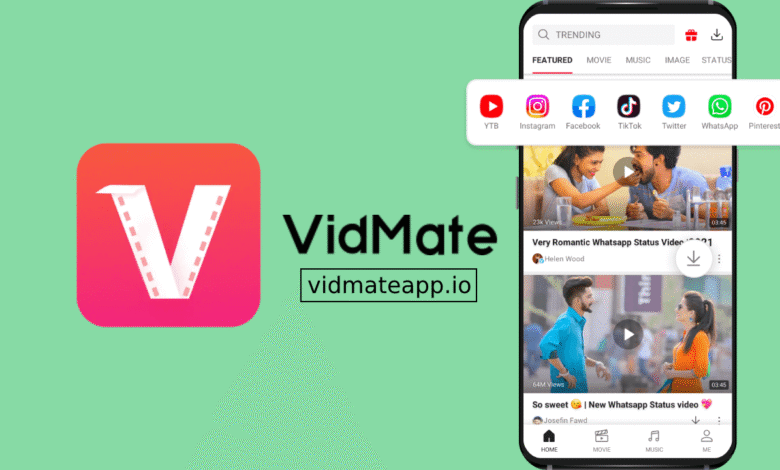
The range of supported platforms is wide enough that most people discover new uses for the app beyond what they originally installed it for. Beyond video downloads, music extraction from video files is possible, meaning you can save audio from a music video without keeping the full visual file. The built-in player means you never need to switch apps to watch what you have saved, and the file organization system keeps everything accessible without digging through your general device storage.